
How to Deploy a Firebase Website as an App on Your iPhone

To use your Firebase-hosted website exactly like a native app on an iPhone, you need to turn it into a Progressive Web App (PWA). This can be particularly useful for those trying to vibe-code their own projects as personal apps.
When a user, or you, add your Firebase URL to the iPhone Home Screen, iOS strips away the Safari browser address bar and bottom navigation controls, making it run in full-screen “standalone” mode. It even gets its own slot in the iOS App Switcher and can send native push notifications.
Here is the step-by-step blueprint to configure your website, deploy it to Firebase, and load it onto an iPhone.
Step 1: Add the PWA Requirements to Your Website
To get iOS to treat your website like a standalone app, you need a configuration file called a manifest.json and a specific set of <meta> tags in your main HTML file.
Create a manifest.json file
Place this file in your website’s root public directory (e.g., alongside your index.html). It tells the phone how your app should behave.
{
  "name": "My Website That I Want To Show As An App",
  "short_name": "FirebaseApp",
  "start_url": "/",
  "display": "standalone",
  "background_color": "#ffffff",
  "theme_color": "#000000",
  "icons": [
    {
      "src": "icon-192.png",
      "sizes": "192x192",
      "type": "image/png"
    },
    {
      "src": "icon-512.png",
      "sizes": "512x512",
      "type": "image/png"
    }
  ]
}
Crucial configuration: "display": "standalone" is what forces the app to hide the browser navigation bars. You will also need to update the src values so that the icon shown in your home screen is relevant to your app.
Update your index.html
Apple’s iOS has historically been picky about web apps, so you need to explicitly declare iOS-specific meta tags inside the <head> block of your index.html:
<head>
  <link rel="manifest" href="/manifest.json">

  <meta name="apple-mobile-web-app-capable" content="yes">
  <meta name="apple-mobile-web-app-status-bar-style" content="black-translucent">
  <meta name="apple-mobile-web-app-title" content="FirebaseApp">

  <link rel="apple-touch-icon" href="/icon-180.png">
</head>
Step 2: Deploy to Firebase Hosting
Firebase Hosting automatically enforces HTTPS, which is a hard security requirement for iOS PWAs to function. For a full guide, see Deploying Websites Using Firebase.
Open your terminal in your project root folder and log in:
firebase login
Initialise Firebase in your project if you haven’t already:
firebase init hosting
Select your project, choose your public directory where your index.html and manifest.json live, and configure as a single-page app if necessary.
Deploy your app live:
firebase deploy --only hosting
Firebase will output a hosting URL (e.g., https://your-app-id.web.app).
Step 3: Install it Like an App on an iPhone
Apple does not allow web browsers to automatically pop up an “Install App” prompt. Instead, the installation has to be initiated by the user manually.
- On your iPhone, open Safari (or your preferred browser) and navigate to your deployed Firebase URL (
https://your-app-id.web.app). - Tap the Share button (the square icon with an arrow pointing up at the bottom of the screen).
- Scroll down the share sheet and tap Add to Home Screen.
- Give it a name and tap Add in the top right corner.
The Result
Go back to your iPhone Home Screen. You will see your website icon sitting next to your regular App Store apps. Tap it, and it will slide open into a full-screen, seamless environment without a single hint of browser UI.
If you haven’t yet set up Firebase Hosting, take a look at my previous guide on deploying websites to Firebase before following the steps above.
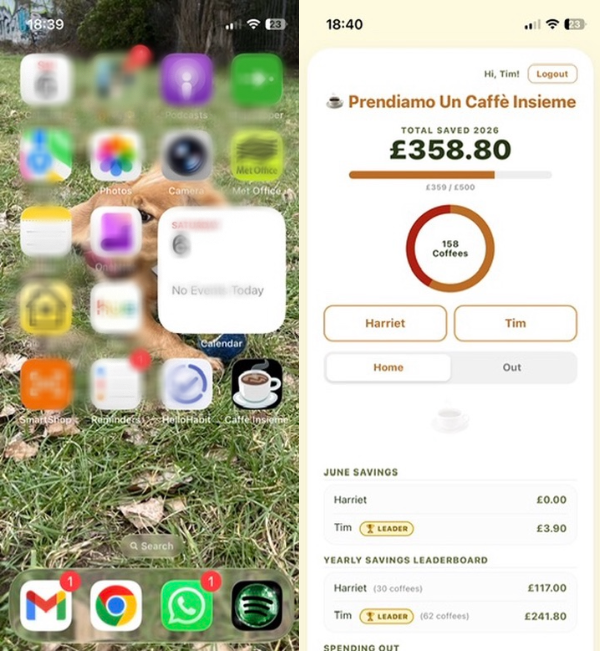
The below example shows one of the projects that I have worked on, an app to track our saving on coffee spending since getting a new coffee machine. You can see both the Caffè Insieme icon and the app opened without a browser bar. The code for that can be found here.
Hopefully you found the above useful - do not hesitate to reach out with any questions.
Newsletter
Occasional notes on data, tracking & AI-readiness
No spam, no growth-hacking. Just an email when there's something worth reading.