
How to Build a Data Agent in BigQuery Conversational Analytics
The overview piece on Conversational Analytics covered what a Data Agent actually is and why the glossary and verified query features matter more than the chat interface itself. This is the follow-up for anyone who read that and wants to build one.
Before you start
Make sure billing is enabled on the project, and that the following APIs are switched on: BigQuery, Gemini Data Analytics, Gemini for Google Cloud, and Knowledge Catalog. To actually create an agent you need the roles/geminidataanalytics.dataAgentCreator role on the project. If you’re setting this up for a client, confirm who holds that role before you promise a build date.
Creating the agent
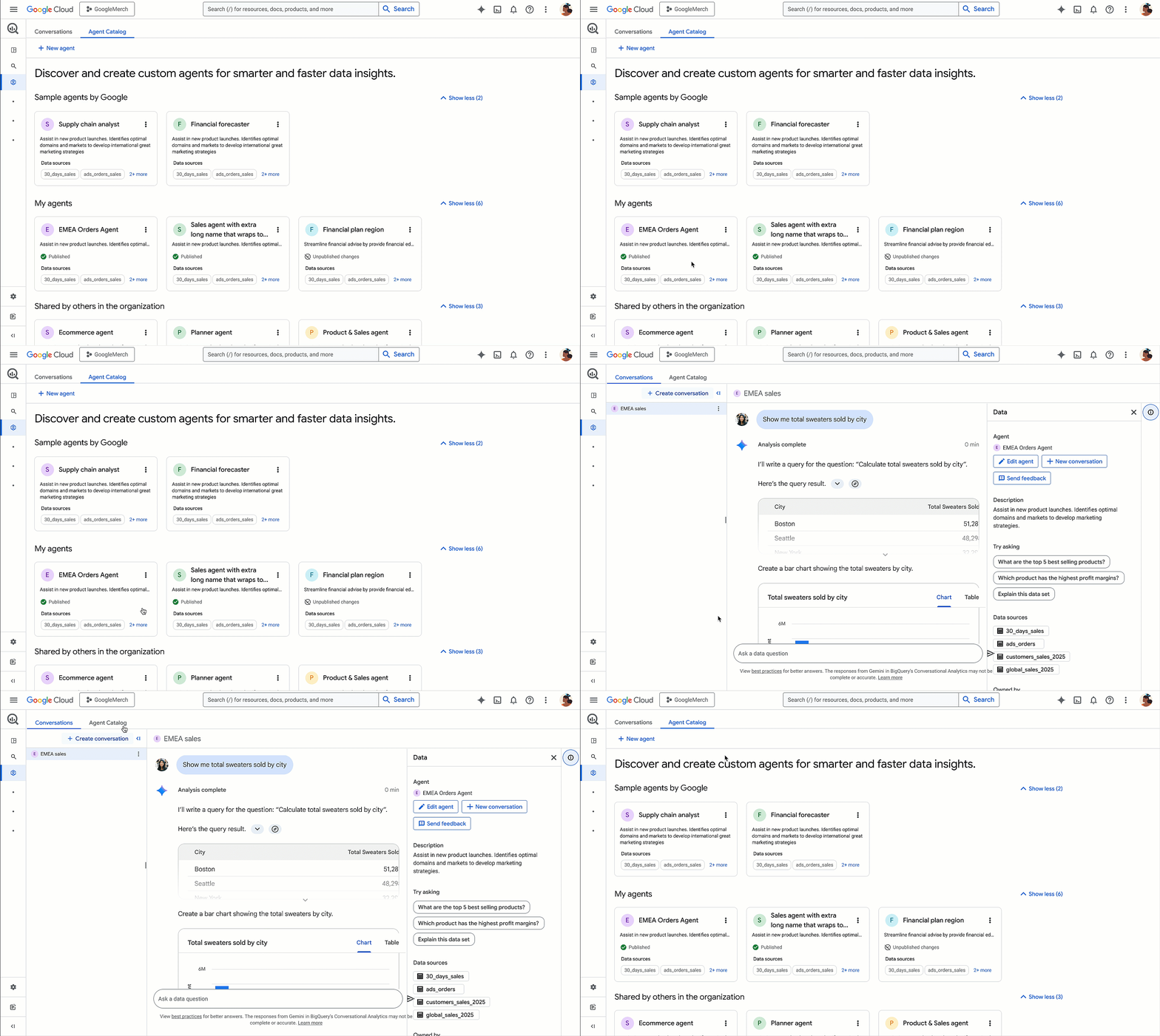
In the Google Cloud console, go to BigQuery’s Agents page, select the Agent Catalog tab, and click New agent. Give it a proper name, something like “Q4 sales data,” not “Agent 1,” and write a real description of what it covers and who it’s for. That description is the first thing anyone deciding whether to use this agent versus building their own will read.
Adding knowledge sources
In the Knowledge sources section, click Add source. You can pick tables, views, graphs, or user-defined functions straight from Recents, or search by name for anything else. Add everything the agent genuinely needs, and stop there. Remember the ceiling is 100 sources per agent, and Google’s own documentation is explicit that broadly-scoped agents produce inconsistent answers. A narrow, well-chosen set of sources beats a maximal one.
Once sources are added, click Customise under each one. Gemini will suggest table and field descriptions, which you can accept, edit, or reject individually. This is worth doing properly rather than accepting every suggestion by default. A wrong field description doesn’t cause an error, it just quietly steers the agent toward the wrong interpretation of a question.
Setting up the glossary
In the Glossary section, click Add term, then Create term, and fill in the term name, its definition, and any synonyms people actually use for it. This is where you put the thing a column name can never say on its own: what “active customer” or “GMV” actually means for your business, not the textbook definition.
One thing worth knowing before you duplicate work: business glossary terms already defined in Knowledge Catalog apply globally across BigQuery, not just to one agent. If your organisation already has a glossary there, manage the term centrally rather than redefining it inside every agent you build. Use the agent-level glossary for terms that are genuinely specific to that agent’s domain.
Adding verified queries
This is the feature that turns “an AI that writes SQL” into “an AI that runs SQL someone actually checked.” Click Review suggestions to see what the system proposes based on your knowledge sources, or Add query to write one from scratch. Enter the question it answers, generate or write the SQL, click Run to check the results are actually correct, then Add to save it.
For questions with a variable in them, build a parameterised version instead of one query per variant. Write the question as a template, something like “What is the total stock for @product in the @region warehouse?”, generate the SQL, then use Manage query parameters to define each parameter’s name, data type, default value, and a description written for the model rather than a human. Test it by swapping in real sample values before you save it.
Prioritise verified queries for the handful of questions your team or a client actually asks every week. That’s a better use of the time than trying to anticipate everything someone might ask.
Settings worth checking before you publish
In the Settings section, choose which model types (Preview or GA) users of the agent can access, and set Maximum bytes billed, a per-query cost cap that can’t be set any lower than 10,485,760 bytes (10 MiB). An unscoped agent answering an unexpectedly broad question can scan far more data than anyone intended. Add labels here too if you’re managing several agents and want them to show up sensibly in cost and usage reporting later.
Testing and publishing
Use the Preview section to run real sample questions against the agent before anyone else sees it. This is where you’ll catch the gaps: a question it answers confidently but wrong, a verified query that doesn’t fire when it should, a glossary term that isn’t actually resolving the ambiguity you built it for.
For example, asking a published agent a specific data-quality question, like whether any images in a dataset have multiple generations or versions, should come back with a proper finding grounded in the actual field values, not a vague guess:
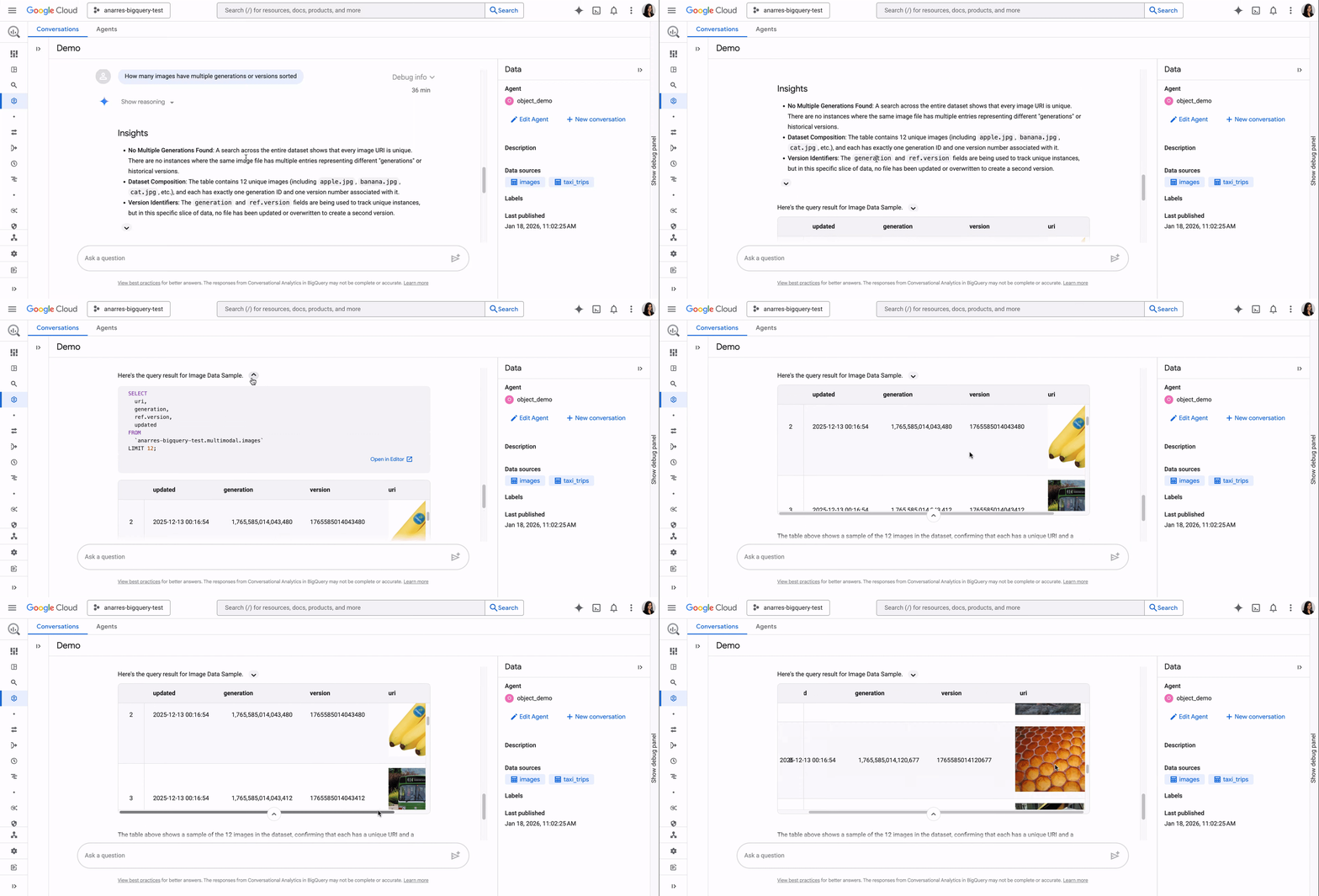
Save to keep the agent in draft while you iterate on questions like that. When you’re satisfied, click Publish.
Sharing it with the team
Publishing prompts a Share dialog. Click Add principal, enter the people who need access, and choose the right role for each: roles/geminidataanalytics.dataAgentUser for someone who should only chat with it, dataAgentEditor for someone who needs to keep building it, and dataAgentViewer for read-only visibility into its configuration without edit or chat rights. Don’t default everyone to editor because it’s the fewest clicks.
Published agents also show up in the Agent Catalog, alongside sample agents Google provides and anything colleagues have already shared with the organisation, so people can find and reuse an existing agent instead of quietly building a duplicate:
Once it’s shared, people can use it directly in BigQuery Studio, through the “Chat with your data” feature in Data Studio, or via the Conversational Analytics API if you’re building a custom interface on top of it.
The permissions detail worth remembering
Per Google’s own documentation, agents act on the permissions of whoever’s asking, not on some elevated service identity: “Agents can only access data and resources that you have permission to access.” A shared agent doesn’t quietly give someone access to a table they couldn’t already query. If a question against the agent fails or returns nothing, checking the asker’s own underlying BigQuery permissions is a reasonable first troubleshooting step.
What to actually do about it
Start with one domain you understand well and fewer than a dozen tables, not your whole warehouse. Write real glossary definitions for the two or three terms that already cause disagreement on your team, and build verified queries for the questions people ask constantly rather than trying to cover everything. Set a sensible bytes-billed cap before you publish, and share access role by role rather than handing out editor rights by default. Once that first agent is genuinely useful and trusted, expanding to a second domain is a much smaller lift than building a broad one from scratch would have been.
Newsletter
Occasional notes on data, tracking & AI-readiness
No spam, no growth-hacking. Just an email when there's something worth reading.