
Layer Lens v1.2: See Exactly Where Your Email Goes in An Analytics Stack

The original idea for this feature came from using Layer Lens exactly as it was designed to be used — searching for a value visible on a page and seeing where it appears in the tracking data. I was searching for a user identifier on a site and found myself wondering: if I typed my email address here, would it show up in the dataLayer or a GA4 network hit? And if it did, would it be sitting there in plain text?
That question turned into a feature.
The Problem It Solves
Email addresses find their way into analytics stacks in more places than you might expect. Google Enhanced Conversions uses email as a primary matching signal. The Meta Conversions API sends email for audience matching. GA4 itself supports user_id and user_data parameters that sites commonly populate with email addresses or hashes. And server-side platforms often enrich or forward this data in ways the front-end team may not have full visibility into.
The question isn’t just is email present — it’s how it’s present. The platforms that request email for matching purposes almost universally ask for it as a SHA-256 hash, not plain text. Google’s documentation for Enhanced Conversions and GA4 user data specifies lowercased email hashed with SHA-256. Meta’s CAPI does the same. Sending a plain-text email address instead of a hash is both a privacy risk and — for Enhanced Conversions especially — likely to reduce match quality because the platform expected a hash.
Until now, checking this meant manually inspecting network requests, converting your email to a SHA-256 hash yourself using an external tool, and then searching for that hash string in the DevTools Network tab. Layer Lens v1.2 does all of that for you in a single click.
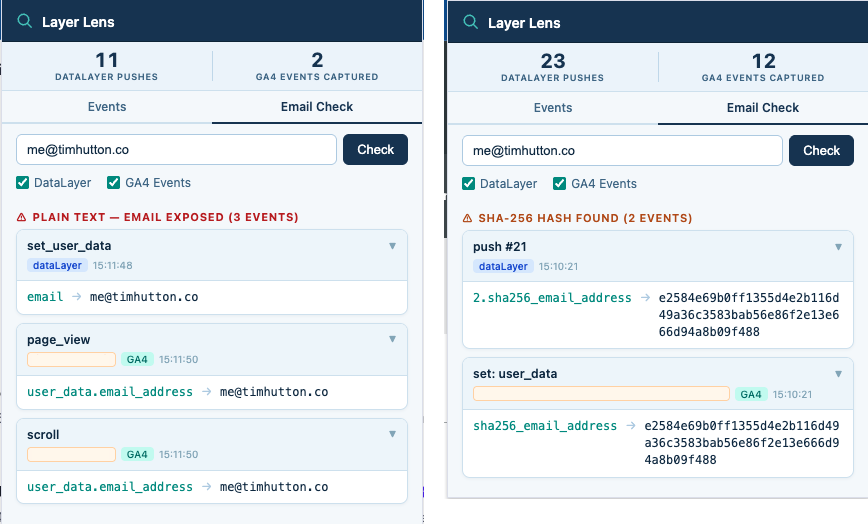
What the New Email Tab Does
The extension popup now has two tabs: Events (the original search) and Email (the new feature).
Enter any email address in the Email tab and click Check. Layer Lens runs two separate searches simultaneously:
Plain-text search: It searches the dataLayer and GA4 hits for the email address exactly as typed. If it finds a match, it surfaces it under a “Plain text — email exposed” heading, a clear signal that the email is present in the tracking data without any hashing.
SHA-256 search: Rather than asking you to hash the email yourself, the extension computes the SHA-256 hash in-browser using the Web Crypto API — no external services, no data leaving the browser. Because different platforms normalise email differently before hashing, it computes three variants: the original casing, fully lowercased, and fully uppercased. All three hashes are searched, and deduplicated if any happen to match. Matches appear under a “SHA-256 hash found” heading.
If neither search finds anything, you see a clean confirmation that the email wasn’t found in plain text or hashed form in the current data.
Smart Email Detection
The hover-to-search tooltip that was already in Layer Lens — the small button that appears when you highlight text on a page — has been updated to recognise email addresses. If you select something that looks like an email, the popup opens directly on the Email tab with the address pre-filled and the check already run. The Events tab is also pre-filled in the background, so you can flip between them without re-typing.
Why This Matters for Analytics Teams
For anyone implementing or auditing analytics on a site that handles user accounts or checkout flows, this is exactly the kind of thing that should be part of a standard QA pass. Knowing whether email is being sent at all, and if so whether it’s hashed correctly, is both a data quality question and a privacy one. The fact that it now takes ten seconds instead of several minutes to verify makes it far more likely to actually happen.
And for Everyone Else
You don’t have to work in analytics to find this useful. If you’ve ever signed into a website, checked out as a customer, or submitted a form and wondered where your email address ends up — this tells you. Sign in, open Layer Lens, go to the Email tab, type your address, and you’ll see whether it appears in the tracking data being sent from that page, and whether it’s travelling in plain text or hashed. Most people have no idea this is even happening in the background. Layer Lens makes it visible in a way that doesn’t require any technical knowledge to understand.
Installing Layer Lens
Layer Lens can be found in the Chrome Web Store here. The v1.2 update is live. If you have the extension installed, it will have updated automatically.
The source code is on GitHub here.
Newsletter
Occasional notes on data, tracking & AI-readiness
No spam, no growth-hacking. Just an email when there's something worth reading.