
Introducing Layer Lens: Search Your GTM & GA4 Data in Real Time

If you work in analytics, you will know the routine. A new requirement comes in and you need to verify if that data is tracked and where you can find it in Google Analytics. You open DevTools, switch to the Network tab, filter by collect, wait for the right event to fire, find the hit buried in a wall of query string parameters, and then try to read a tilde-delimited compact item string that GA4 sends for ecommerce events. It works, but it is slow and fiddly — especially when you are checking multiple products, doing QA across a large ecommerce site, or trying to quickly verify a specific value like a product ID or user property.
I built Layer Lens to fix that. It is a Chrome extension that captures GTM dataLayer pushes and GA4 network hits in real time and lets you search across everything with a single term. Type a product name, an EAN, an event name, a user ID — anything — and it finds it instantly, showing you the exact parameter path and value where it matched.
What Layer Lens Does
Real-time capture from page load: Layer Lens injects itself before any page scripts run, so it catches everything from the very first dataLayer.push() or GA4 hit — nothing is missed even on pages that fire tracking on load.
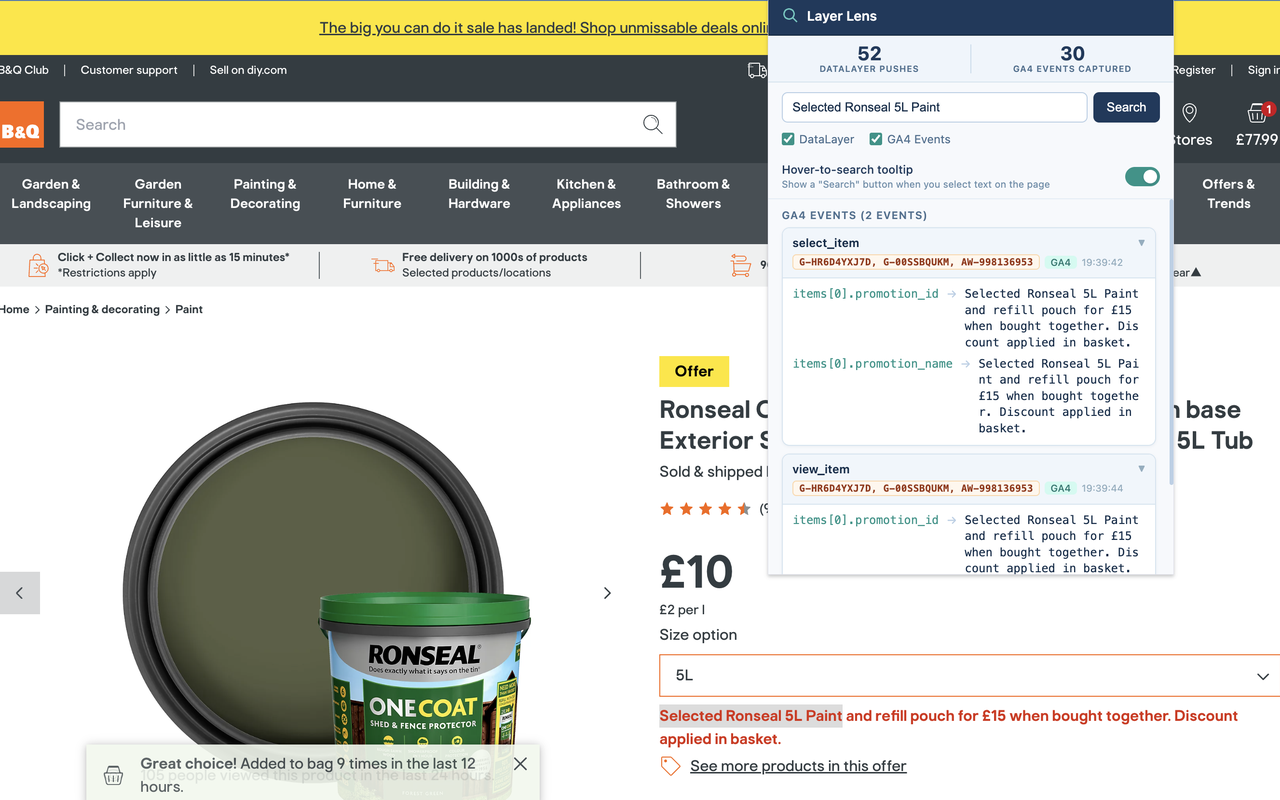
Instant search: Open the popup, type your term, and results appear grouped by source. Each result card shows the event name, the matched parameter path (e.g. ecommerce.items[0].item_id), and the exact value. Cards are expanded by default so you see the match immediately.
GA4 ecommerce decoding: GA4 sends ecommerce item data in a compact tilde-delimited format that is essentially unreadable raw — something like pr1=id46376. Layer Lens decodes this automatically into full GA4 field names (nmJacketbrVERSACEcaClothingpr5530~qt1item_id, item_name, item_brand, item_category, price, quantity) so results are readable without any manual translation.
Server-side GTM support: Enterprise sites increasingly proxy GA4 hits through a first-party domain via server-side GTM rather than sending directly to google-analytics.com. Layer Lens catches those too — it detects GA4 hits by path pattern and payload fingerprint, not just by domain.
Measurement ID display: On pages running multiple GA4 properties, each GA4 result card shows the G-XXXXXXXX Measurement ID the hit was sent to, so you always know which property you are looking at.
Hover-to-search: Highlight any text on the page — a product name in the UI, an order ID, anything — and a small “Search with Layer Lens” button appears above the selection. Click it and the extension opens with the search already run. No copying, no switching tabs, no typing.
Right-click search: The same idea via the context menu: select text, right-click, and choose “Search DataLayer for…”. The popup opens and results appear immediately.
Source filtering: Use the DataLayer and GA4 checkboxes to restrict your search to one source if you only care about one side of the implementation.
Persistent last search: The extension remembers your last search term and source selection, so reopening the popup after navigating to another page picks up right where you left off.
Cohn the Layer Lens mascot icon: One of my beloved spaniels as the icon; because who doesn’t want to see a cute pup in their browser?

Why I Built It
The existing tools for analytics debugging — Tag Assistant, Omnibug, the GA4 DebugView — are all useful, but none of them answered the specific question I found myself being asked most often: is this particular value in the data and where can I find it? They show you everything that fired, which is great for auditing, but when you are QA-ing an implementation against a spec and want to know whether item_id: “46376” is present in the purchase event, you end up scanning manually through a lot of output.
The search-first approach came from watching the actual workflow: an analyst or developer has a specific value in mind — usually something visible on the page itself — and wants to confirm it is in the tracking layer. So the natural interaction is to select the value on the page and search for it, rather than scrolling through an event log. The hover-to-search tooltip and right-click integration came directly from that insight.
The GA4 ecommerce decoding came from real pain on a large-scale implementation. Network-level GA4 hits use short codes to compress item parameters — nm for item name, br for brand, pr for price — and decoding them manually against the GA4 spec documentation every time you want to read a hit is genuinely tedious. Building the decoder into the extension means it is never something you have to think about again.
Installing Layer Lens
Layer Lens can be found in the Chrome Web Store here.
Once installed, navigate to any page you want to inspect, click the icon, type a search term, and press Enter. That is all there is to it.
The extension code can be found on Github here.
I would love for you to try it out and share any feedback!
Newsletter
Occasional notes on data, tracking & AI-readiness
No spam, no growth-hacking. Just an email when there's something worth reading.